
Jarvis is an assistant you talk to. Ask it to open apps, play music, look things up, find files and more. It always asks before doing anything important.
This guide takes about 5 minutes. You don't need any technical knowledge once Jarvis is installed.
You need: a Windows 11 PC or a Mac with Apple silicon (M1 or later, macOS 13 or later), a microphone (most laptops have one; without one you can type), an internet connection, and a Claude Pro or Max plan (sign up at claude.ai). No Claude plan? See Other ways to connect.
Jarvis isn't released yet. Until the first download is published, it runs from its source code: see Running from source. The setup steps below are the same either way.
1. Install#
- Download Jarvis for Windows from the website (an .exe file).
- Open it from your Downloads folder.
- Click Install. Jarvis installs for you only and needs no administrator password.
- If Windows says "Windows protected your PC", click More info, then Run anyway. Jarvis is free and isn't code-signed, so Windows asks this once.
The setup wizard opens. On its last screen, Install for me moves Jarvis out of your Downloads folder and adds it to the Start Menu.
On a Mac:
- Download Jarvis for Mac (a .dmg file) and open it. Drag Jarvis onto the Applications folder in the window that opens.
- Open Jarvis from Applications. The first time, macOS says it can't check it, because Jarvis isn't notarized by Apple: click Done, open System Settings › Privacy & Security, scroll down and click Open Anyway, then Open. macOS asks this once.
- When the setup wizard reaches the microphone, click Allow so macOS lets Jarvis hear you.
If you opened Jarvis straight from the disk image, Install for me on its last screen copies it into your Applications folder, where it can update itself.
2. Set up (the setup wizard)#
When Jarvis opens for the first time, a short setup guides you. Just follow the big button on each screen. Back takes you to the previous screen, and if you close Jarvis halfway it continues where you stopped.
-
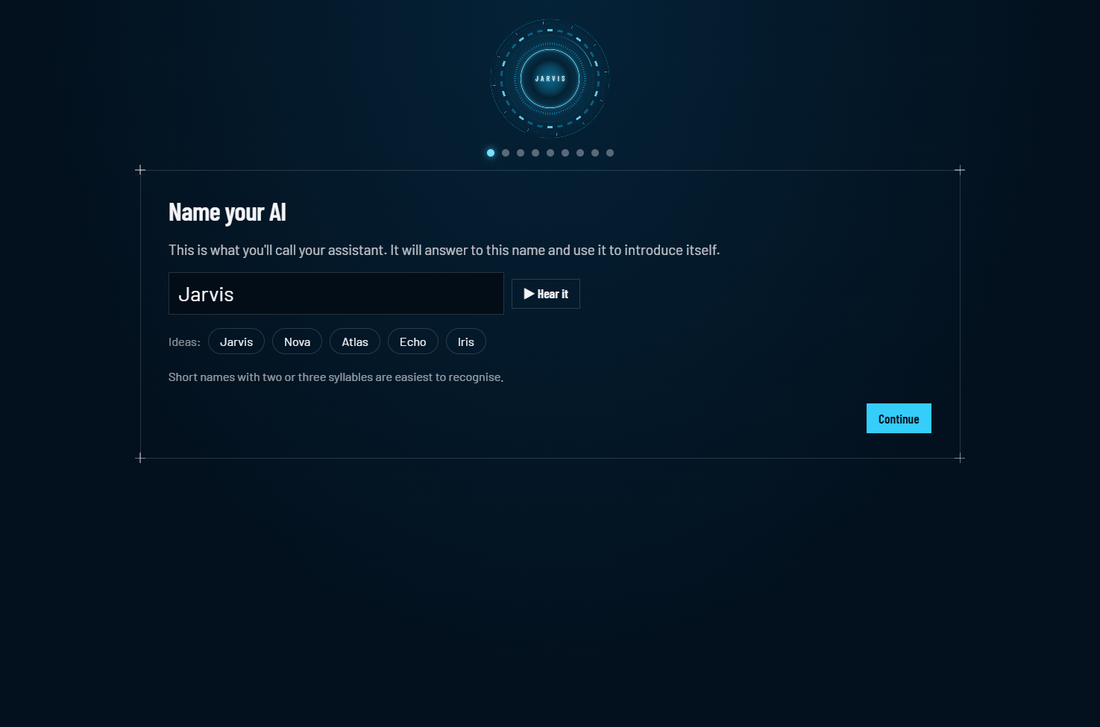
Name your AI: choose a name for your assistant (or keep the suggestion) and press ▶ Hear it. Your assistant answers to this name from now on; below, we call it Jarvis.
-
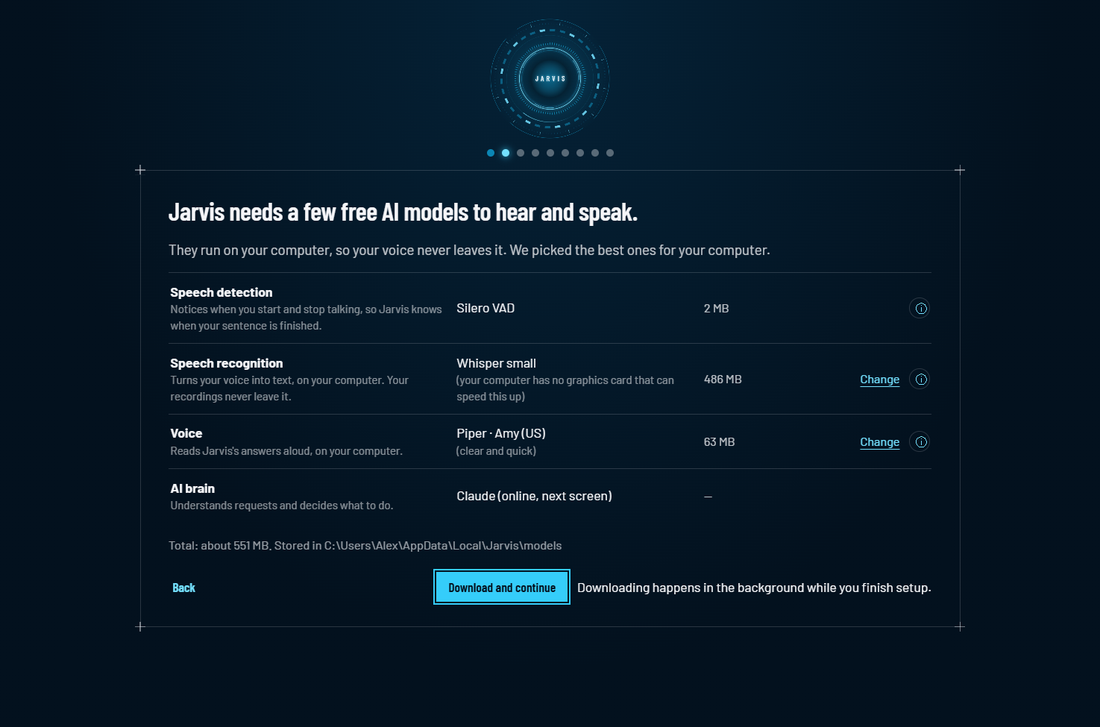
What Jarvis needs: Jarvis shows the free AI models it will download and what each one does. It has already picked the best ones for your computer, so just click Download and continue. Click Change to pick another one, or ⓘ to learn more and see the official page and license.
-
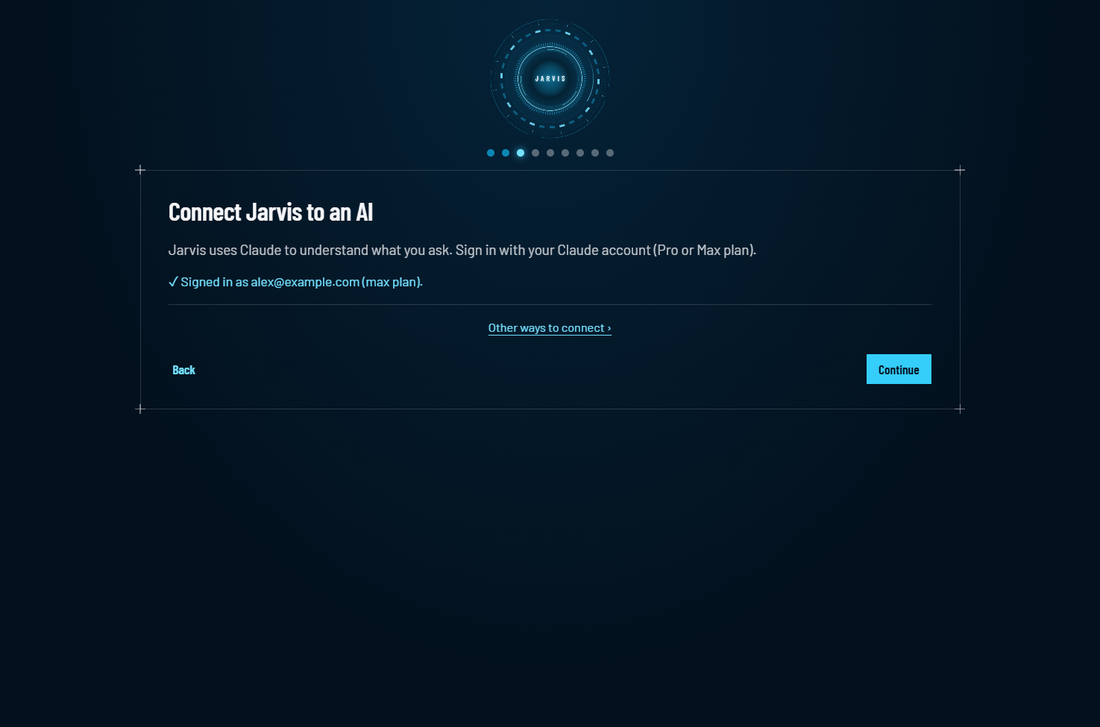
Connect your AI: click Sign in with Claude. Your web browser opens. Sign in with Google or your email, then go back to Jarvis; it shows a tick with your account. If Claude Code (Anthropic's app that Jarvis uses for this) isn't on your computer yet, click Install it for me first.
-
Microphone: pick your microphone if it isn't already chosen, click Test and say "Hello Jarvis". The bar shows your voice level. If Windows blocks the microphone, click Open privacy settings.
-
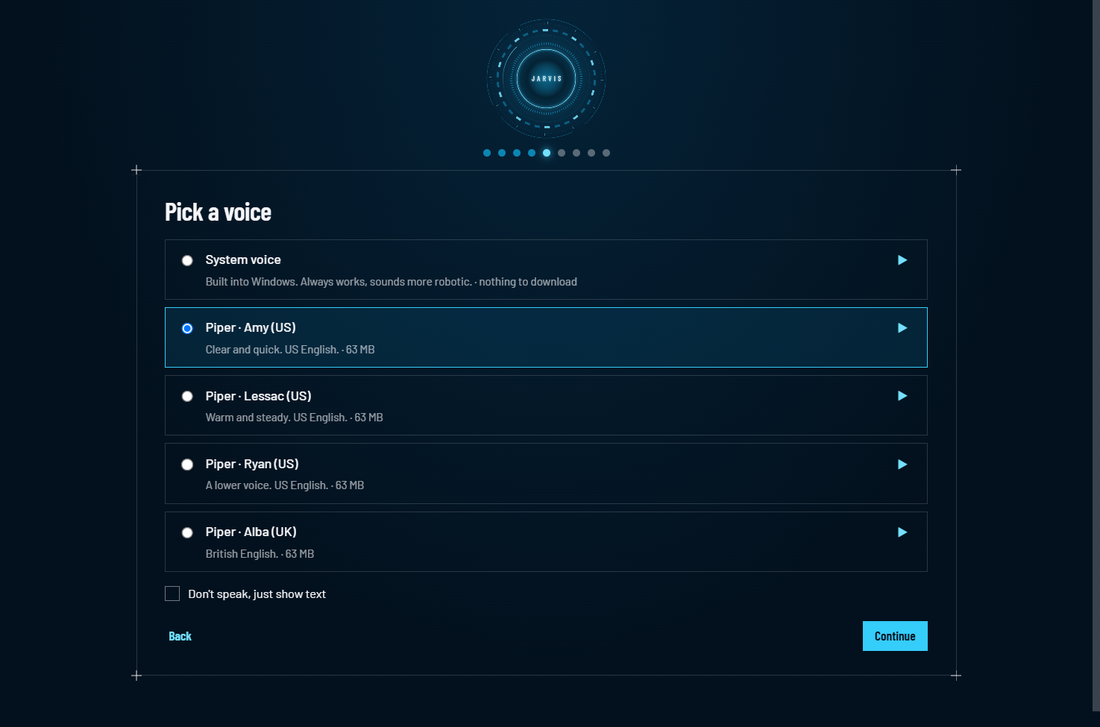
Voice: press ▶ to hear the voices and pick the one you like. Tick Don't speak, just show text if you prefer reading.
-
About you (optional): tell Jarvis your name, and add folders it may work in. You can click Skip.
-
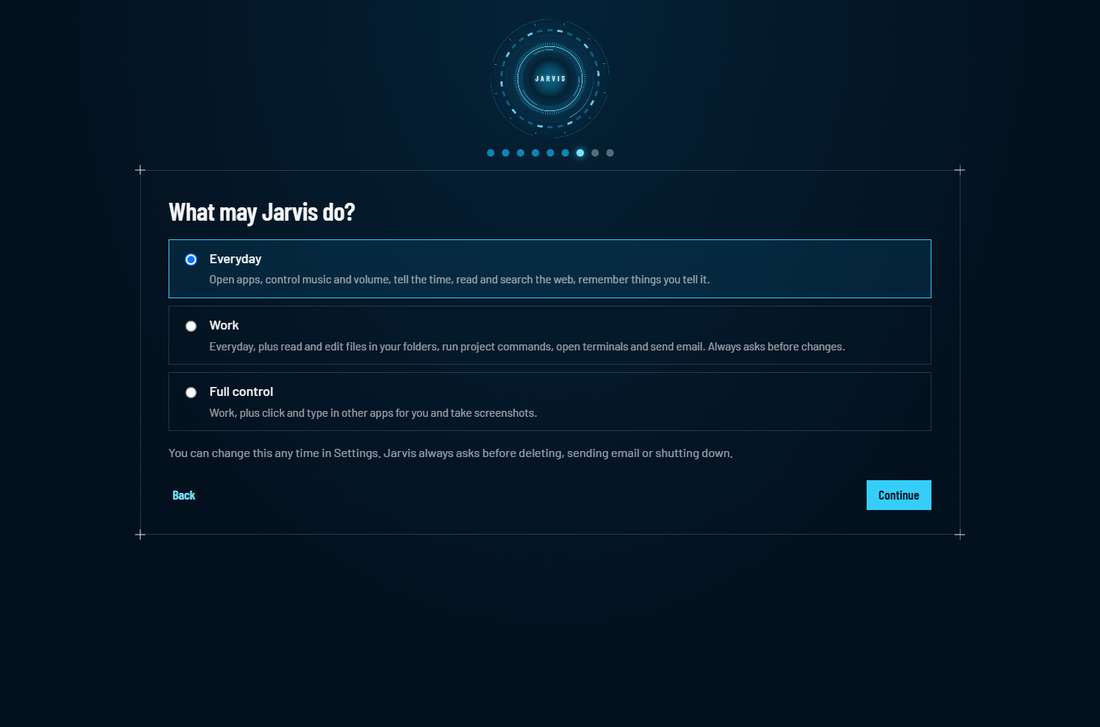
What Jarvis may do: keep Everyday if you're unsure. You can change this later.
-
Start-up: choose whether Jarvis starts when you sign in to Windows.
-
Try it: click Talk and say "What time is it?", or type it. Then click Finish.
While you do this, Jarvis downloads its models in the background (about 550 MB on most computers); a bar at the bottom shows the progress. If they're still downloading at the end, you can type to Jarvis until they're ready.
What gets downloaded#
All of these are free and run on your own computer. You can change them later in Settings › Models.
| What | What it does | Default | Size | Official page |
|---|---|---|---|---|
| Speech detection | Notices when you start and stop talking | Silero VAD | 2 MB | https://github.com/snakers4/silero-vad |
| Speech recognition | Turns your voice into text | Whisper small (medium with an NVIDIA graphics card and its CUDA libraries) | 486 MB (1.5 GB) | https://huggingface.co/Systran/faster-whisper-small |
| Voice | Reads answers aloud | Kokoro · Heart (one download holds all the Kokoro voices) | 354 MB, plus about 25 MB for the Kokoro engine | https://huggingface.co/hexgrad/Kokoro-82M |
Slow or no internet at setup? Click ⓘ on a row › Download manually: your browser downloads the file. Then click I already have this file and pick it. Jarvis checks the file is the right one before using it. Downloads that stop halfway continue where they stopped.
Until the voice has downloaded, Jarvis speaks with the voice built into Windows. You can also keep that one: it needs no download, but sounds more robotic.
The Kokoro voices need the Kokoro engine. It uses espeak-ng and phonemizer, which are open source under the GPL-3.0 license, so the engine is not part of Jarvis. Jarvis installs it from the Python Package Index together with the voice (this part needs internet; it can't be downloaded by hand in the browser). Piper voices work the same way.
3. Everyday use#
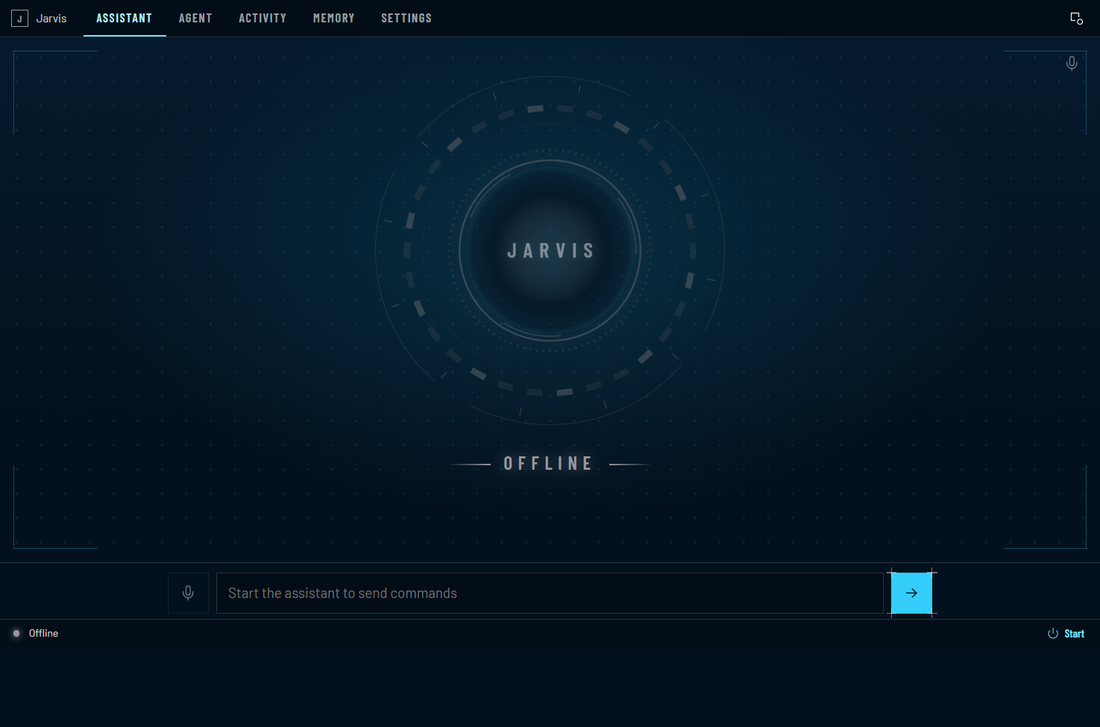
- Talk: click the orb, or press Ctrl+Shift+J (on a Mac Control-Shift-J, ⌃⇧J), then speak. Jarvis stops listening when you stop talking.
- Hold to talk: in the Jarvis window, hold Space while you speak.
- Type: write in the box under the orb and press Enter.
- Mute the microphone: Ctrl+M or the microphone button.
- Approve or refuse: when Jarvis wants to do something important, it shows a box and asks out loud. Click Allow or Deny, press Y or N, or say "yes" / "no".
- Hide it: close the window. Jarvis keeps running as a small orb and an icon in the taskbar tray (in the menu bar on a Mac). Right-click the icon to quit (on a Mac, click it).
Things to try:
- "Open Notepad" / "Open Chrome"
- "Play the next song" / "Turn the volume down"
- "What's the weather in Chennai?"
- "Remember that my passport is in the blue drawer" … later: "Where is my passport?"
- "Summarize this web page: "
4. Change what Jarvis is allowed to do#
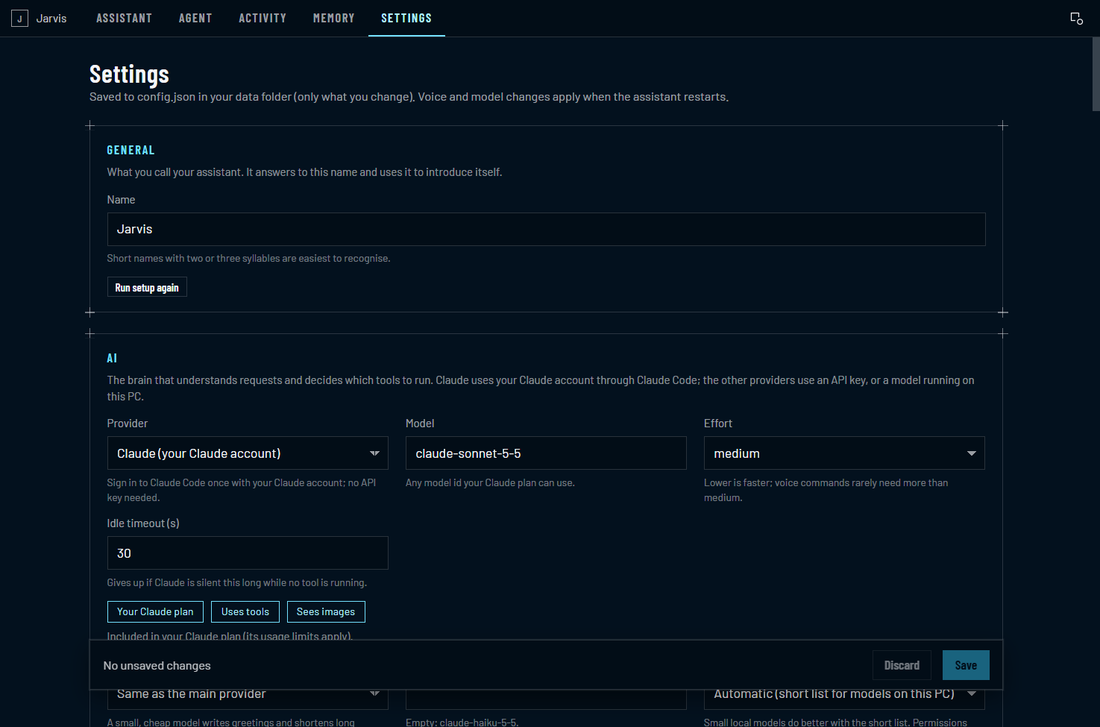
Open Settings › Tools and permissions, or run the setup again (Settings › General › Run setup again) and pick another card:
- Everyday: apps, music and volume, time, web, memory, reading the folders you added, locking the PC.
- Work: also edits files in those folders, runs project commands, opens Command Prompts (Terminal windows on a Mac), sends email and runs coding agents. Asks before risky changes.
- Full control: also looks at, clicks and types in other apps for you and takes screenshots. On a Mac, this needs two permissions in System Settings › Privacy & Security, Accessibility and Screen & System Audio Recording: the setup wizard shows both, with buttons that open the right page.
In Settings › Tools and permissions you can also switch each group on or off by itself.
Jarvis always asks before deleting a file, emailing someone who isn't on your trusted list, shutting down or restarting your computer, or typing into a running program. For these, click Allow or press Y: a spoken "yes" isn't enough. After it reads a web page or a screen, it also asks before any change. The details are in What Jarvis can do on your PC, and how to limit it.
5. Other ways to connect#
In the setup (or Settings › AI), click Other ways to connect:
- Claude API key: pay per use instead of a plan. Create a key in the Anthropic Console and paste it.
- Free and private: runs an AI model on your own computer with Ollama or LM Studio. Needs a powerful computer (16 GB of memory or more).
- Other providers: OpenAI, Google Gemini, OpenRouter, Groq and others with an API key.
Details: AI providers.
6. Something's not working?#
When something goes wrong, Jarvis shows a bar at the top of its window that says what happened, with a button that fixes it.
| Problem | What to do |
|---|---|
| Jarvis doesn't hear me | Settings › Microphone: check the microphone. If the bar says access is blocked, click Open privacy settings and turn microphone access on (on a Mac: System Settings › Privacy & Security › Microphone › Jarvis) |
| Mac: "Jarvis can't be opened" | System Settings › Privacy & Security, then Open Anyway (see step 1) |
| "Speech recognition isn't downloaded yet" | Click Open Models and download it, or wait for the download to finish |
| "You're signed out of Claude" | Click Sign in and sign in again in the browser |
| "Claude's usage limit is reached" | Your plan's limit resets at the time shown. You can add an API key meanwhile (Use an API key instead) |
| "This API key didn't work" | Click Change key and paste a new one |
| Voice sounds robotic or slow | Settings › Models or Settings › Voice: pick another voice |
| Anything else | Settings › Logging and diagnostics › Save a report, then attach the file when you report the problem. The report never contains your passwords or keys, and your user folder and email addresses are hidden |
7. Update and uninstall#
- Updates: Jarvis checks when it starts and downloads a new version in the background. When it's ready, a bar says so: click Restart to update. Settings › About › Check for updates checks now.
- Uninstall: Settings › About › Uninstall. Tick the box first if you also want your settings, memories, downloaded models and saved keys deleted.
Privacy in one paragraph#
Listening only starts when you click or press the shortcut. Speech is turned into text on your computer. Only the text of your request (and, with Full control, screenshots you allow) is sent to the AI you connected. Your history and memories stay on your computer. Jarvis has no ads, no tracking and no telemetry.